
Installation
Download from the official site (macOS)
https://openai.com/codex/Install via the command line
Environment Variable Configuration
Configure via the config file
- Edit your
~/.codex/config.tomlfile and add the following:
- Edit your
~/.codex/auth.jsonfile and update it as follows:
Configure via cc-switch
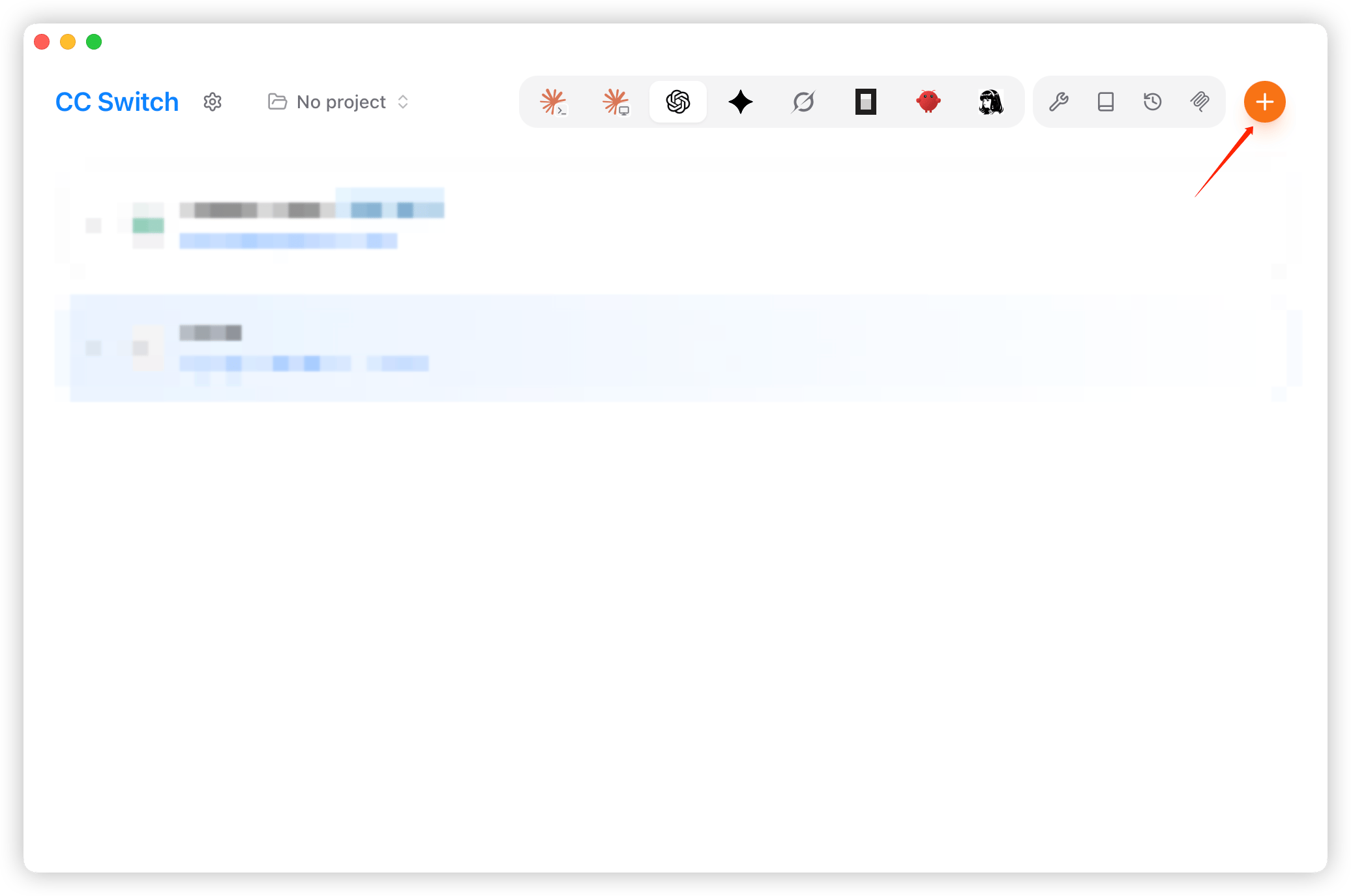
- Launch CC-Switch and add a provider.
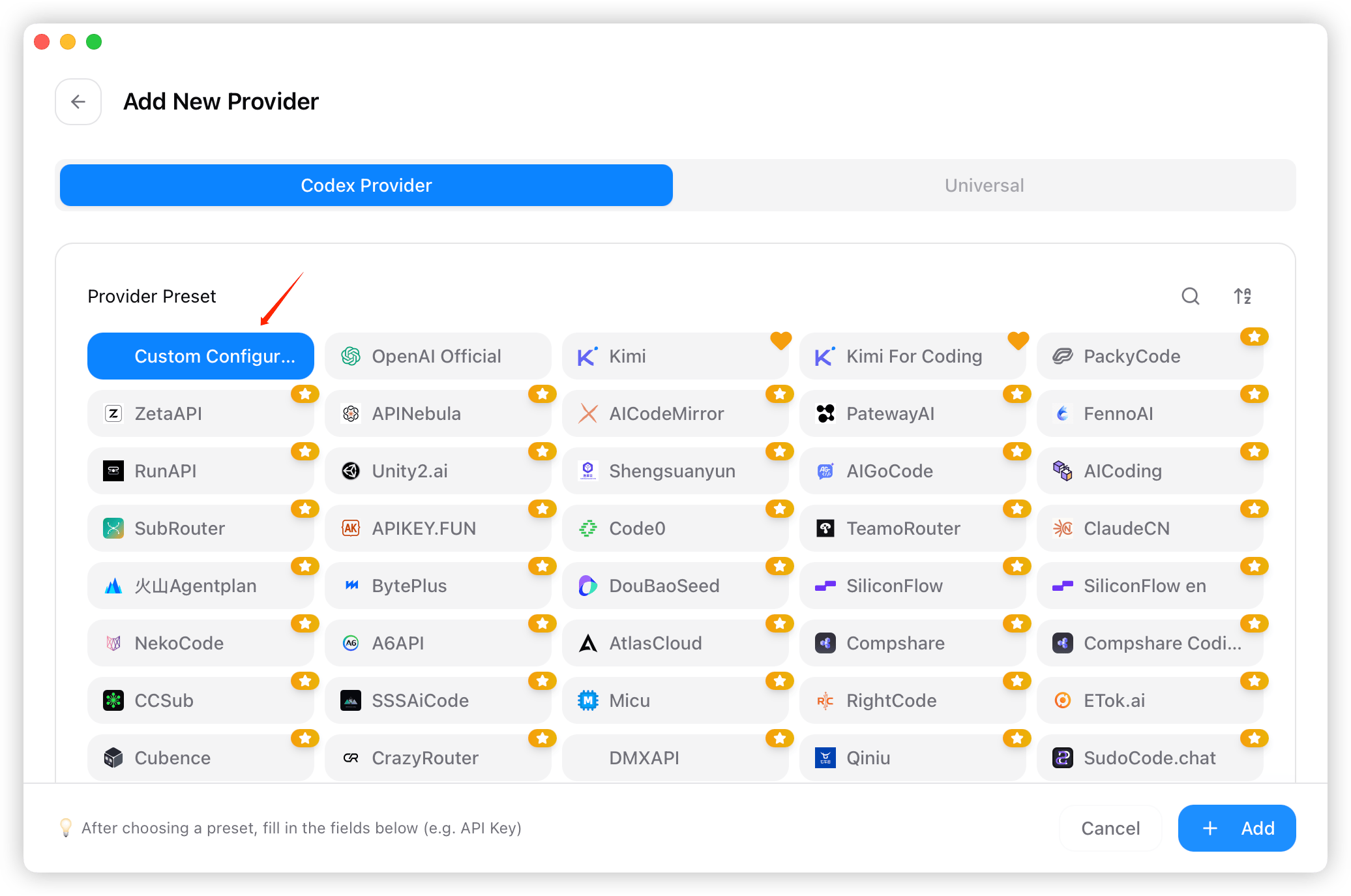
- From the preset list, choose “Custom Configuration.”
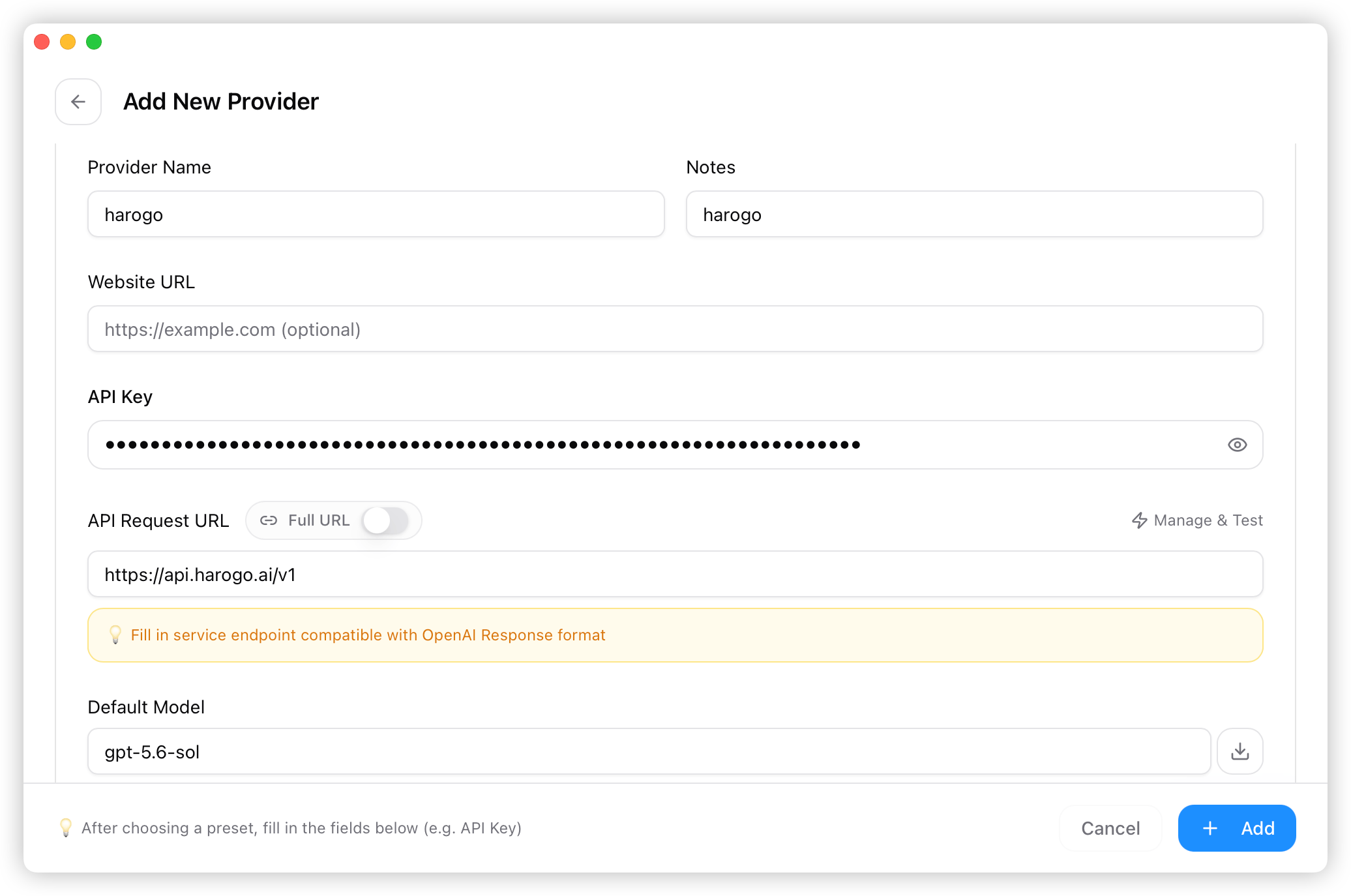
- Fill in the provider name, API key, and endpoint (https://api.harogo.ai/v1), etc. Once everything is filled in, click “Add.”
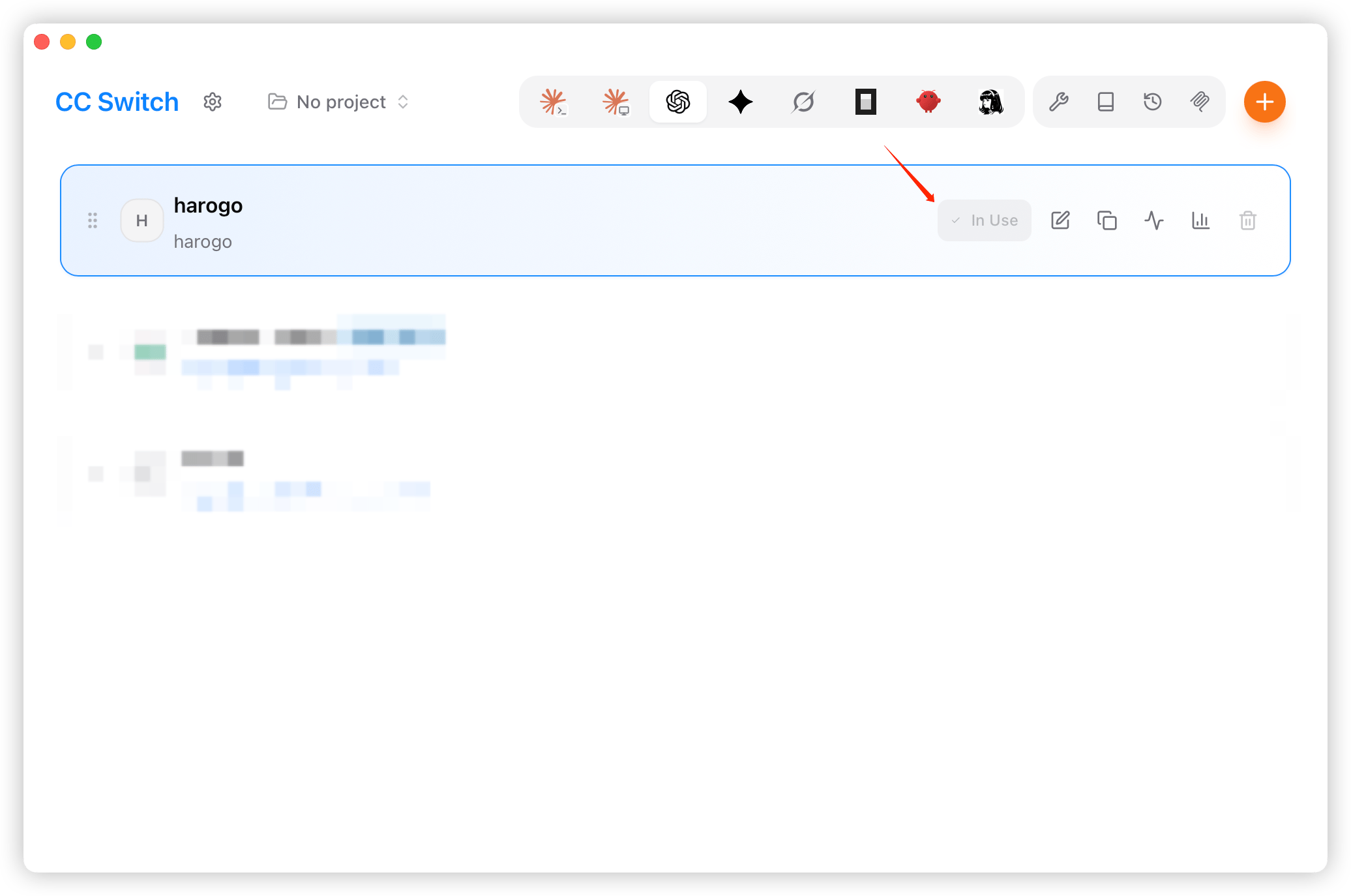
- Back on the home screen, select “harogo” and click “Enable” to start using it.
Using Codex
In the terminal
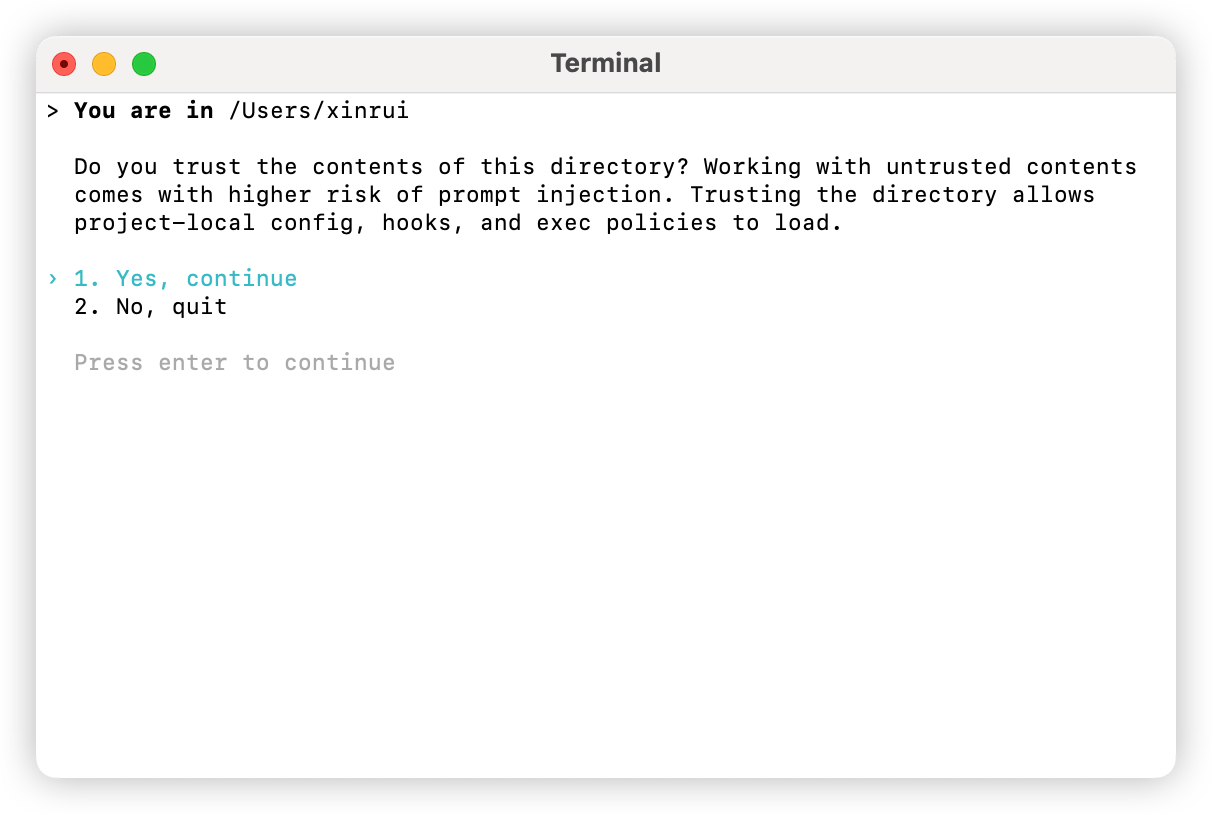
- Open a terminal, navigate to your project directory, then run the
codexcommand.
- Set permissions as needed.
- Type a natural-language prompt — if you get a normal response back, the setup was successful.